
In QuickBooks, a customer can be set up as a sub-customer of another customer — useful for tracking jobs under a single account, multiple locations of one client, or a contractor doing work for a property owner. Biller Genie reads these parent/sub relationships from QuickBooks and gives you two distinct features to leverage them: Bill With Parent (route a sub-customer's billing through the parent), and the customer-portal experience that lets one portal user see, switch between, and pay invoices for multiple customer records they're connected to.
The two parent/sub features at a glance
- Bill With Parent — a per-customer-or-per-type setting on the sub-customer. When on, the parent receives reminders, the parent's autopay configuration drives payment, and communications route to the parent. The sub's own Invoice Messenger, Reminders, and Auto Pay settings get grayed out — the parent's settings take over.
- Display Invoices with Parent in Customer Portal — a per-customer toggle on the parent customer. When on, the parent's portal view includes invoices for sub-customers in a single combined list. Independent of Bill With Parent — you can turn either on without the other.
How Bill With Parent works under the hood
When Bill With Parent is on for a sub-customer, several pieces of Biller Genie's behavior shift from the sub to the parent at runtime:
-
Reminders and Invoice Messenger. At send time, Biller Genie checks the sub-customer's
BillToQbOnlineParentflag. If it's on, it looks up the parent and uses the parent's reminder and Invoice Messenger toggles to decide whether to send. The sub's own toggles are ignored. - Paper mail reminders. Paper mail follows Bill With Parent the same way email reminders and statements do: the parent's paper mail settings decide whether a sub-customer's invoice is mailed, and the envelope goes to the parent's mailing address. The parent needs the paper reminder turned on and a confirmed mailing address on file.
- Check payments. A check captured with Mobile Check Capture or the Check Scanner can be applied across the parent's invoices and its sub-customers' invoices in one step. Select the parent when processing the check and its sub-customers' open invoices are listed with its own, each marked with the customer it belongs to. Each invoice gets its own payment record.
- Auto Pay. When invoices are eligible for autopay, the system uses the parent's autopay configuration (autopay enabled, autopay-on-type, default payment method, threshold) to determine whether and when to charge. If the parent has autopay off, no autopay runs against the sub's invoices — regardless of what the sub's record says.
- Invoice routing. The invoice itself is still recorded against the sub-customer in the database (the sub is who the work was for), but communications and payment processing flow through the parent.
- Payment processing. Payments are processed using the parent's stored payment method, but the payment record applies to the sub's invoice. Your accounting software sees the sub's invoice marked paid, with the payment coming from the parent's card on file.
- Late fees. Late fees are still calculated against the sub-customer's invoice (the sub "owns" the overdue balance from an accounting perspective), but the overdue reminder goes to the parent because of the reminder inheritance.
Stored payment methods aren't shared automatically
Each customer record has its own set of stored payment methods. Bill With Parent doesn't merge them — it just means autopay reads from the parent's default payment method. If the parent has no card on file but the sub does, autopay will fail because there's no parent method to charge. Make sure the parent has a working stored payment method before relying on Bill With Parent for autopay.
How QBO and QBD differ in handling Bill With Parent
Bill With Parent looks the same on a customer's record in Biller Genie regardless of which accounting software you're connected to, but it's persisted very differently behind the scenes:
- QuickBooks Online: Bill With Parent is a native QBO setting (the "Billed with" dropdown on a sub-customer's profile). Biller Genie syncs the flag bi-directionally — if you flip it on a sub-customer in QBO, BG picks it up on the next sync; if you flip it in BG, it writes back to QBO. The two systems stay aligned automatically.
- QuickBooks Desktop (MagicCarpet): QBD has no equivalent setting. Biller Genie stores Bill With Parent locally only — it persists across MagicCarpet syncs but is never read from or written to QuickBooks Desktop. To turn it on or off for a QBD-connected customer, set it directly on the customer record in BG. Nothing about Bill With Parent appears in QuickBooks Desktop itself, and there's no QBD-side toggle that would override the BG value.
The practical implication: if you're on QBO, expect the setting to round-trip between systems and check both if something looks off. If you're on QBD, BG is the source of truth — you'll only ever change it in BG.
QBO Projects require Bill With Parent — be careful with bulk changes
QuickBooks Online Projects are technically sub-customers under the hood, and QBO requires the "Bill parent customer" checkbox to be on for every Project. If you use the Customer Defaults surgical option to push Bill With Parent: OFF across all customers at once, you can inadvertently turn it off for your QBO Projects — which then breaks the alignment QBO requires and can cause confusing invoicing behavior. Biller Genie applies the bulk change to every sub-customer including Projects; it doesn't single Projects out for special handling.
If you're using QBO Projects, set Bill With Parent per customer for any non-Project sub-customers that need it changed, and leave your Projects' Bill With Parent flag alone. See Intuit's help: Change sub-customers into projects for the QBO-side requirement.
When to use Bill With Parent
- Property management. The property owner is the parent; individual properties or jobs are sub-customers. Owner gets one set of communications, one autopay arrangement, but each job is billed and reported separately.
- Multi-location franchisees. The franchisee corporate office is the parent; individual locations are sub-customers. Corporate handles all payment but you keep per-location billing.
- General contractors paying subs' invoices. The GC is the parent; the trades they work with are sub-customers. The GC's autopay covers the trades' invoices.
- Holding company with operating entities. Holding company is the parent; subsidiaries are sub-customers. Centralized payment, decentralized billing.
When you have a single point of payment that should handle multiple separately-tracked accounts, Bill With Parent is the cleanest pattern. If you need each sub-customer to handle their own payments independently, leave Bill With Parent off and let each customer manage their own settings.
How to turn on Bill With Parent
Biller Genie reads Bill With Parent directly from the customer record in QuickBooks Online or QuickBooks Desktop. You configure the flag once in your accounting system, Biller Genie picks it up on the next sync, and any auto-pay run on the parent will cover all linked sub-customers' invoices.
- In QuickBooks Online (or QuickBooks Desktop), make sure the customer is set as a sub-customer of the parent. In QBO this is on the customer's profile under "Is sub-customer".
- In QBO, set the sub-customer's Billed with dropdown to Parent customer. This is the QBO-side flag Biller Genie reads.
- Wait for the next Biller Genie sync (or run a manual sync). Biller Genie picks up the parent/sub relationship and the Bill With Parent flag automatically.
- In Biller Genie, open the sub-customer's record. You'll see Bill With Parent is on and the sub's Auto Pay, Invoice Messenger, and Reminders fields are now grayed out and inheriting from the parent.
Video walkthrough
A short tutorial showing the QuickBooks Online side of the setup, end to end:
Step-by-step with screenshots (QuickBooks Online)
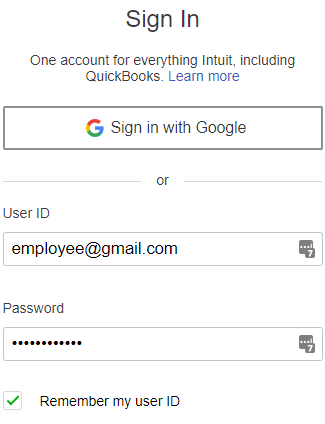
Step 1. Log in to your QuickBooks Online account.
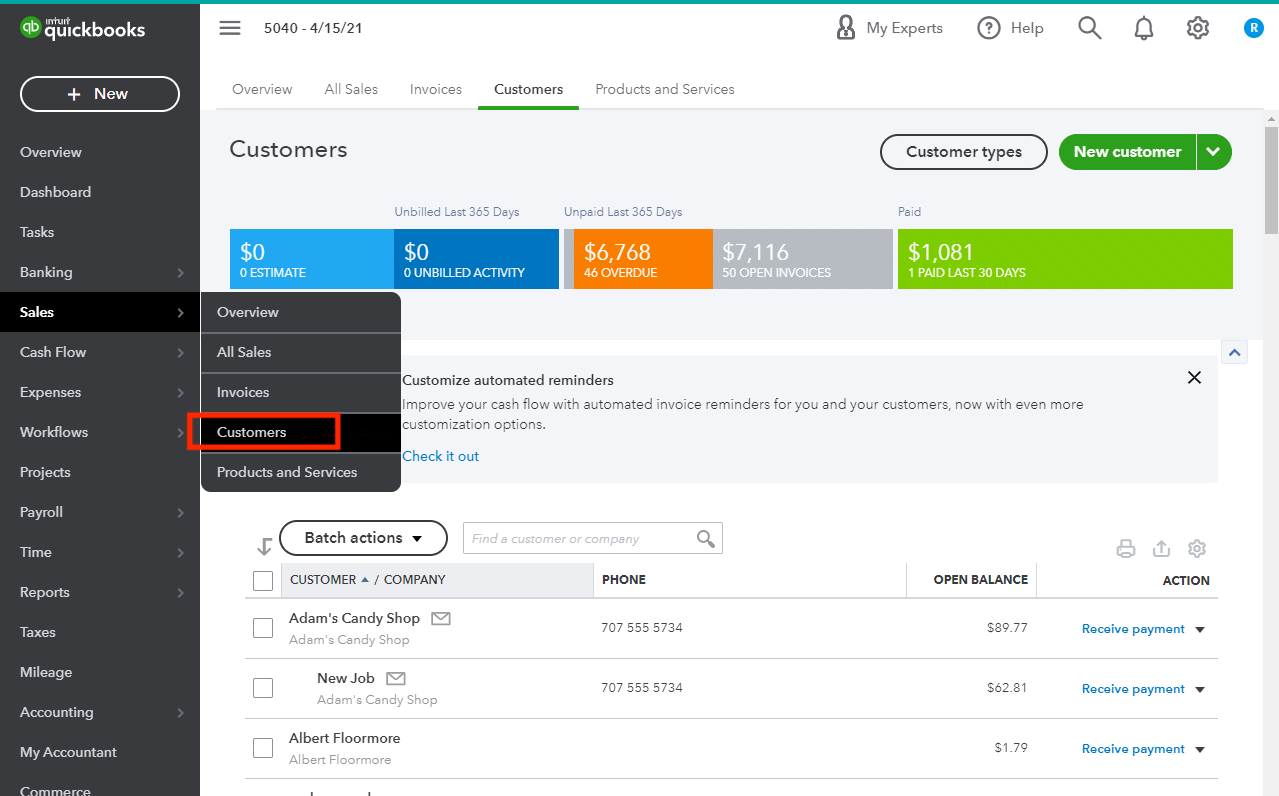
Step 2. Go to Sales > Customers.
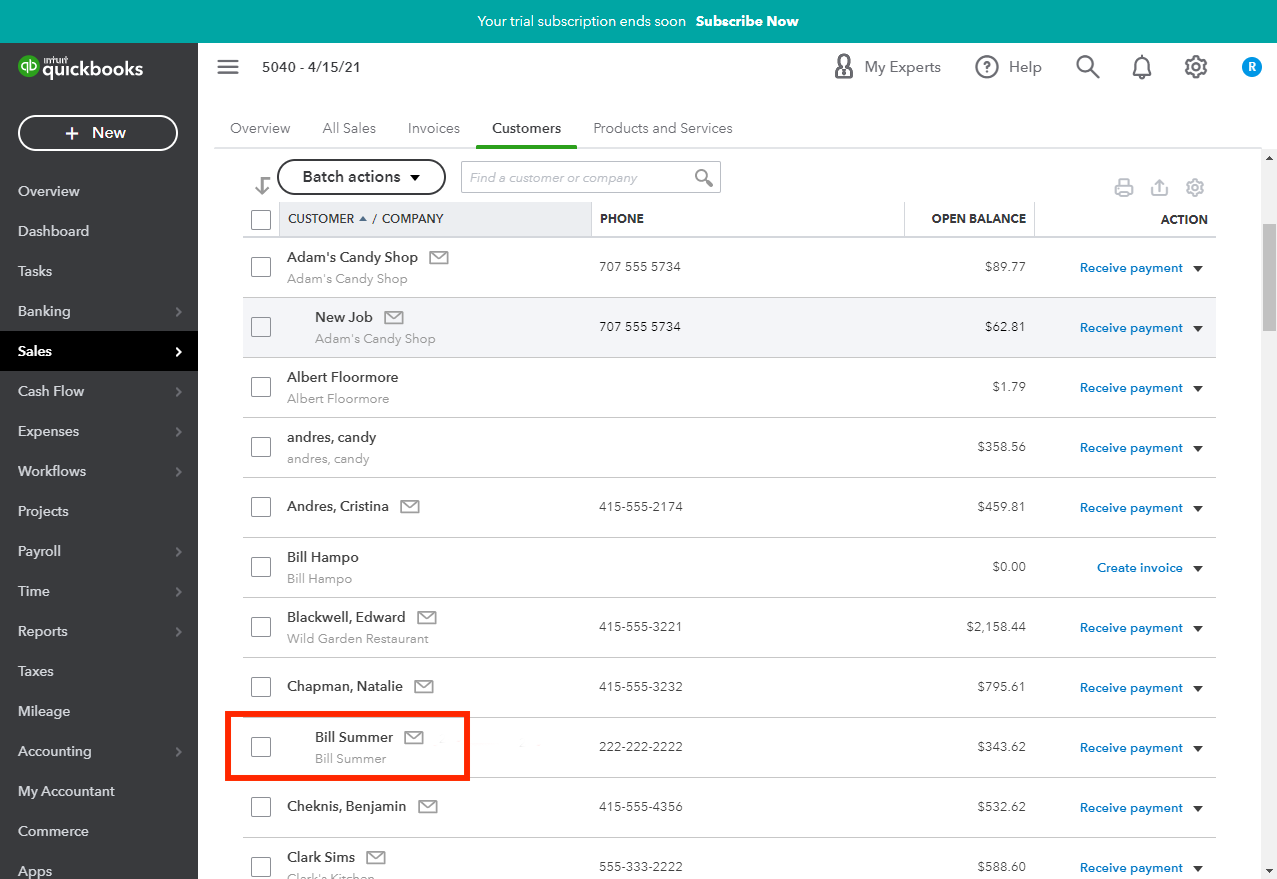
Step 3. Select the sub-customer whose invoices you want the parent customer to pay via auto pay.
Step 4. Click Edit on the sub-customer's profile.

Step 5. In the billing section, set Billing method to Bill with Parent, then save.
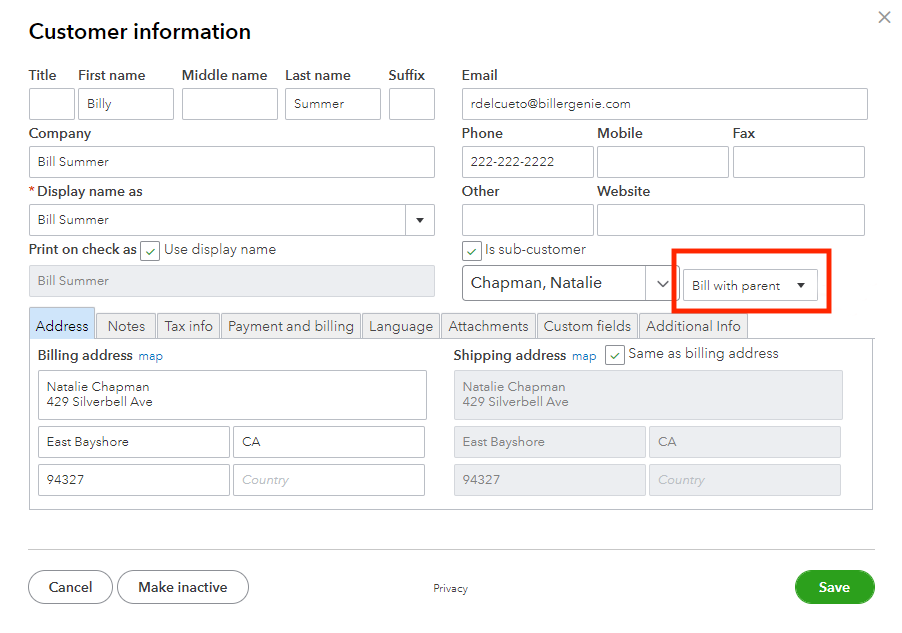
Biller Genie picks up this setting on the next sync. From then on, if the parent customer has auto pay turned on, every sub-customer's invoice runs against the parent's stored payment method automatically.
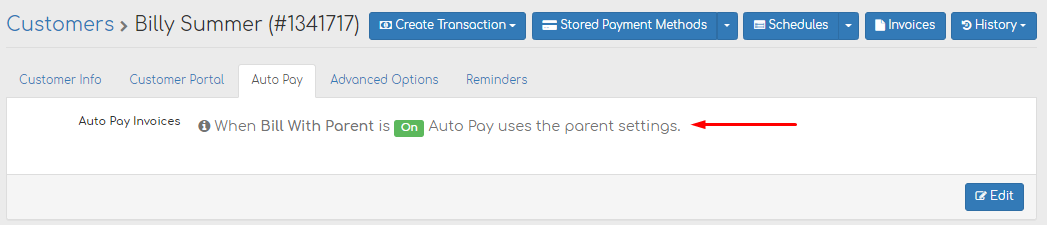
Inside Biller Genie, when you open a sub-customer record and click the Auto Pay tab, you'll see a confirmation message that this customer is configured as Bill With Parent:
The customer-portal experience for parent/sub relationships
When a parent and sub are connected through Biller Genie, the parent's portal experience changes in two ways: the parent can see (and optionally pay) the sub's invoices in one combined view, and a portal user with access to multiple customer records can switch between them from the portal's top navigation.
Display Invoices with Parent in Customer Portal
This is a per-customer toggle (configurable in Customer Defaults, Customer Type Defaults, or per-customer) on the parent customer. When on, the parent's portal view includes invoices for all sub-customers connected to that parent, mixed into the same invoice list.
- Parent logs into the portal as they normally would.
- The invoices grid now shows the parent's invoices and the sub-customers' invoices in one combined list.
- A Hide Sub-Customers button at the top of the grid lets the parent collapse the view back to just their own invoices.
- The parent can select multiple invoices — including sub-customer ones — and pay them in one checkout. The payment processes against the parent's payment method but each invoice gets credited to its correct customer record.
- Sub-customers' receipts still go to the sub-customers (or to the parent, depending on Bill With Parent settings on each sub).
This setting is independent of Bill With Parent. You can have a parent who sees sub invoices in their portal but where each sub still handles their own autopay and reminders, or a parent who does Bill With Parent but doesn't necessarily want to see those invoices in their portal. The two features just happen to be useful together.
Switching between customers in the customer portal
When a single person manages multiple customer accounts in Biller Genie — for example, an office manager who pays bills for three different LLCs, or a customer who set up two separate Biller Genie customer records by accident — the portal lets them switch between those accounts without logging in and out.
How customer-switching works
Biller Genie groups customer records by email address. When a portal user logs in, the portal looks up every active customer record on the merchant's account that shares the logged-in user's email address. If there's more than one match, a Switch Customer dropdown appears in the portal's top navigation listing each matched customer alphabetically.
- Same person, same email, multiple customer records. The dropdown lists each customer record. Clicking one switches the portal context to that customer — their invoices, their saved cards, their autopay configuration.
- Parent and sub-customer that share an email. If you've set up a parent and sub with the same email address, the same portal user can switch between them. This is independent of Bill With Parent — it's just email matching.
- Multiple separate customers, same email. If an accountant uses one email for all the clients they manage in Biller Genie, the accountant sees every one of those clients in the switcher and can move between them freely.
What does NOT enable customer switching
- Being a sub-customer of a parent alone doesn't put a sub in the parent's portal. The sub and parent need to share an email for the switcher to surface either one.
- Bill With Parent being on doesn't automatically link portal access. It just routes billing.
- Display Invoices with Parent doesn't enable switching — it adds sub invoices into the parent's existing view. Different feature.
Switching is email-based, not parent/sub-based
The portal customer switcher is purely email-driven. If you want one portal user to manage multiple customer records, make sure all those records share the same email address. If you want to keep them separate, use different emails. Parent and sub-customer status doesn't drive the switcher.
Putting it all together — three common configurations
Configuration A — Property manager paying for multiple buildings
Parent: Property Manager LLC. Subs: Building 101, Building 102, Building 103. All set up in QuickBooks with the buildings as sub-customers of the manager.
- Bill With Parent: ON for each building. Property Manager LLC's autopay charges its card for any building's invoice.
- Display Invoices with Parent: ON for Property Manager LLC. The manager logs into the portal and sees every building's invoice in one place.
- Result: One payment method, one centralized portal view, one autopay schedule — but each building has its own invoice and accounting record.
Configuration B — Accountant paying bills for three separate LLCs
Customers: LLC A, LLC B, LLC C — totally independent customer records, no parent/sub relationship. The accountant's email is on all three customer records.
- Bill With Parent: Not applicable (no parent/sub relationship).
- Display Invoices with Parent: Not applicable.
- Portal switcher: The accountant logs into the portal with their email and sees the Switch Customer dropdown listing LLC A, B, and C. They switch between them as needed.
- Result: Each LLC has its own autopay, its own stored cards, its own reminder cadence — but the accountant manages all three from one login.
Configuration C — Sub-customers pay independently
Parent: Holding Co. Subs: Operating Co 1, Operating Co 2. Set up as parent/sub in QuickBooks but each operating company manages its own payments.
- Bill With Parent: OFF for both operating companies. Each company's autopay, reminders, and stored cards stand on their own.
- Display Invoices with Parent: OFF. The holding company doesn't need to see the operating companies' invoices.
- Portal switcher: If the three customer records use different emails, no switcher. If they share an email by accident, the switcher appears but it doesn't have to be used.
- Result: Each operating company functions independently in Biller Genie. The parent/sub relationship in QuickBooks is just a reporting tag for the holding company; Biller Genie doesn't change anything else.
Frequently asked questions
If I turn on Bill With Parent for a sub-customer, will the parent be charged for back-invoices automatically?
No. Bill With Parent only affects future autopay processing — it doesn't retroactively charge for invoices that already exist and aren't being processed by autopay. If a sub has unpaid invoices when you turn on Bill With Parent and the parent has autopay on, those invoices will be picked up in the next autopay run going forward. Existing manually-paid history isn't touched.
What if the parent has no stored payment method?
Autopay through Bill With Parent requires the parent to have a stored payment method, because the parent's default method is what gets charged. If the parent has no card on file but the sub does, autopay will fail — the sub's card isn't a fallback. Get a card on file for the parent before relying on Bill With Parent for autopay.
Can I have a multi-level hierarchy (grandparent → parent → sub)?
Biller Genie's parent/sub model is flat — it reads the immediate parent only. If a "parent" customer is itself a sub of a grandparent, Biller Genie uses the immediate parent's settings for Bill With Parent resolution; it doesn't cascade up the chain. We don't recommend setting up multi-level hierarchies for Bill With Parent purposes — keep it to one level (parent → sub) for predictable behavior.
A customer record I want to switch between in the portal isn't showing up in the dropdown. Why?
Three checks: (1) the customer record's email matches the logged-in user's email exactly (case-insensitive, but punctuation and whitespace matter), (2) the customer record is active (deactivated customers don't appear), and (3) the customer record is on the same Biller Genie merchant account. The switcher only shows customers in the same merchant where the user is logged in.
If I set the parent's "Display Invoices with Parent" to OFF after the parent has been viewing sub invoices, will historical receipts be hidden?
Turning the setting off hides sub-customer invoices from the parent's portal view going forward, but doesn't delete history or change any already-issued receipts. The sub's invoices are still in the sub's record exactly as they were — the parent just stops seeing them in the combined view.